
Connect a display
The audience sees the output window. It fills the screen you chose in the settings. Your control window stays on your own screen.
Prerequisite: The second screen, projector or LED controller is connected to the computer by cable (for example HDMI).
Set up the screen
Section titled “Set up the screen”- Connect the screen and switch it on.
- Set it up in your operating system as an extended display, not a mirrored one: on a Mac under System Settings → Displays, on Windows with Windows+P → Extend.
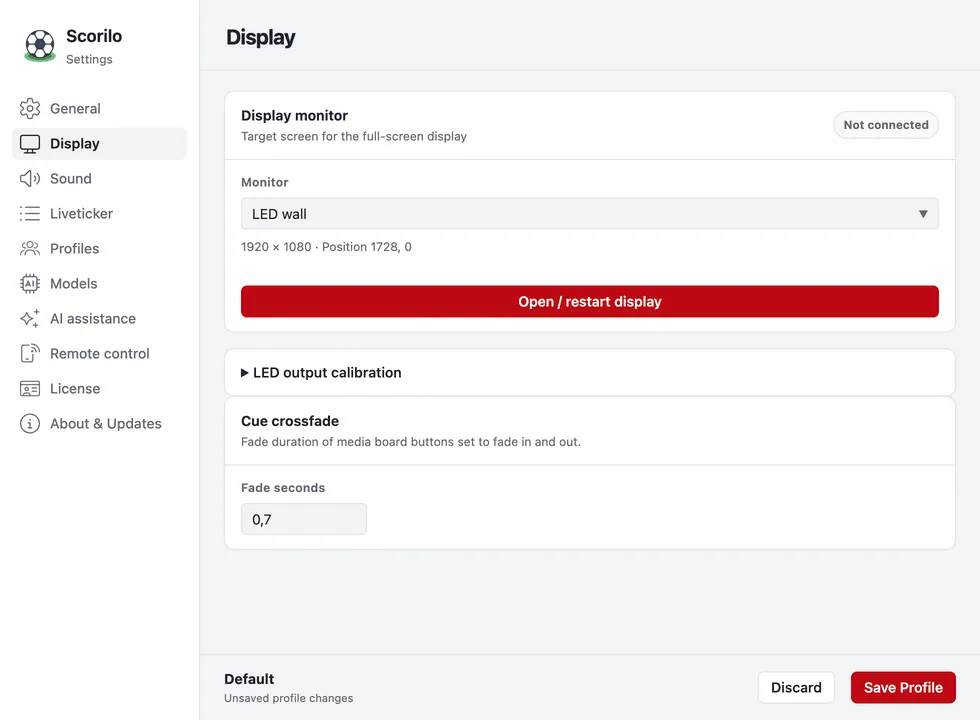
- In Scorilo, open Settings → Display.
- Under Monitor, choose the screen for the audience.
- Select Open / restart display.
- Select Save Profile at the bottom so that Scorilo remembers the choice the next time it starts.
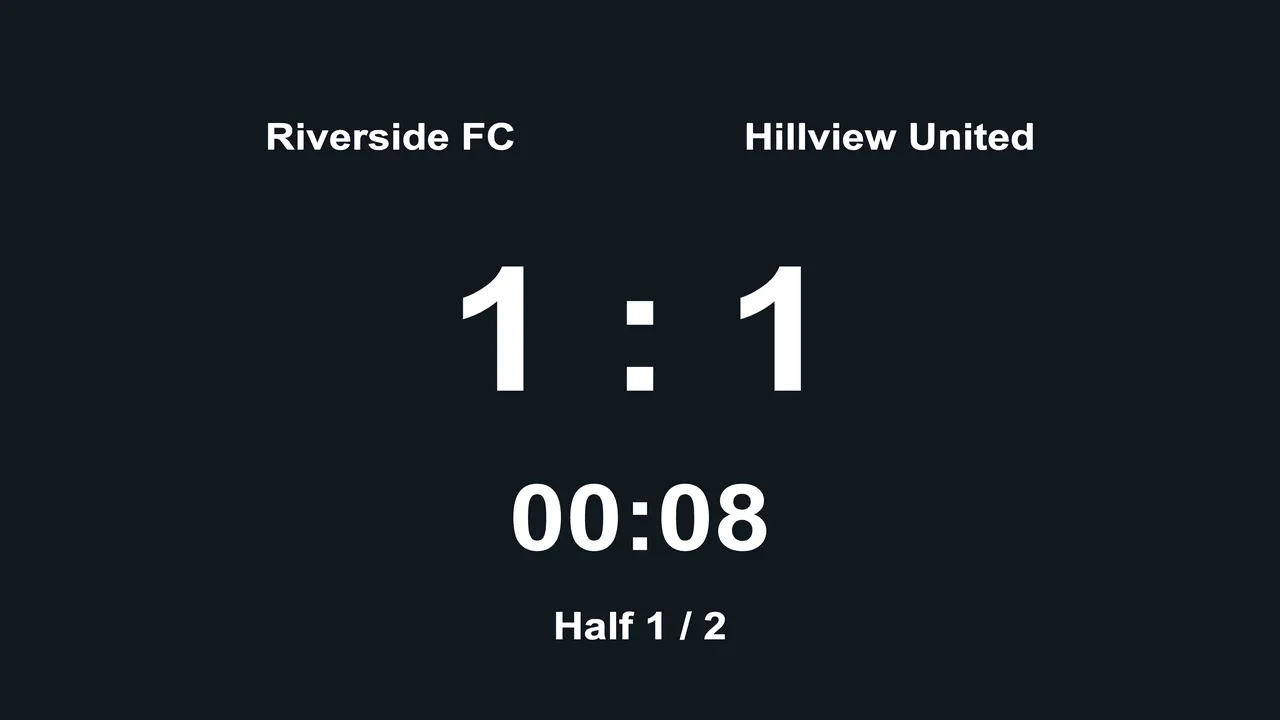
Result: The output window shows the score full screen. Pre-game reads “Stadium output connected”.
If Scorilo finds no second screen, it reports “No second monitor was detected.”. Check the cable, the screen’s input and the Extend setting.
Is the display connected?
Section titled “Is the display connected?”In Pre-game and Break, a line below the stadium display shows the state:
| Line | Meaning | What to do |
|---|---|---|
| Stadium output connected | The display shows what Scorilo sends. | nothing |
| Stadium output not connected | The output window is closed. | Connect |
| No monitor selected | No monitor is chosen in the settings. | Connect opens Settings → Display |
| Monitor not available | The chosen screen is not connected. | check the cable, then Connect |
“Connected” means the output window has confirmed what it shows. Scorilo cannot see whether the LED wall itself is switched on, so take a look.
In Live, the Stadium output card shows the state and a small copy of the display. Open screen and Close screen switch the output window.
Blank the display briefly
Section titled “Blank the display briefly”Blank display at the bottom of the control window turns the display black without stopping the clock. Show display brings it back.
If the display freezes or has disappeared
Section titled “If the display freezes or has disappeared”In the View menu:
- Reopen Output Window opens the output window again. The score and the clock stay as they are.
- Move Output to Another Display… opens the monitor choice in the settings.
- Toggle Fullscreen Output (Cmd/Ctrl+Shift+F) opens or closes the output window.
If you close the output window while the clock is running, Scorilo asks first.
The LED wall shows only part of the picture
Section titled “The LED wall shows only part of the picture”Some LED controllers only use part of the HDMI picture. Under Settings → Display → LED output calibration you set which part of the picture Scorilo draws into:
- If the right half is missing on the LED wall, select Left half 50%.
- Select Open / restart display.
- If parts from the right then reappear on the left, the cabinet mapping must be corrected in the LED controller’s software (for example NovaLCT or SmartLCT). Scorilo cannot do that.
Width, Height, Horizontal start and Vertical start set the area precisely; Full area resets it.
Scorilo plays music, signals and the sound of videos through the audio output device selected in your operating system. Choose the output your PA system is connected to there, and check the volume before the match. The preview in the control window is always muted. See Music, announcements and signals.