
Events and corrections
Besides goals, you can record further events in Live. They appear in the timeline and in the team statistics. They do not change the score or the clock.
Which events are offered
Section titled “Which events are offered”A new profile first shows only the goals and Observation (a free note). To turn on more events:
- In Match actions, select More → Tools….
- Tick what you want to record: Corners, Fouls, Shots, Cards, Penalties, and Manage rotations for substitutions.
- Use for future matches applies the choice to new matches as well.
This is also where you turn the Live ticker off if you do not need texts.
Record an event
Section titled “Record an event”- Select the button, for example Corner or Card. In the Simple view, less common events are under More.
- Choose the team and the player and, for cards, the colour (Yellow, Second yellow, Red) and the Reason.
- Select Save. Cancel or Esc discards the entry.
If a goal comes in while you are recording, goals take priority: an open event entry is discarded, and an open goal is put aside for later.
Substitutions
Section titled “Substitutions”With Substitution you choose the player going Off and the player coming On. Scorilo then knows who is on the pitch. Whether a substituted player may come back is set with Allow return substitutions in the tools.
Correct goals and events
Section titled “Correct goals and events”Every row in the Timeline has a menu (the three dots):
- Correct goal: change the scorer, own goal or play,
- Edit event: change another event,
- Edit text: change the live ticker text,
- Withdraw…: strike the goal or event, after a confirmation,
- History: all changes of this row.
A withdrawn goal no longer counts in the score. It stays visible in the timeline as “Withdrawn”, so it is clear what happened. For the very last action, Undo is enough (Live: clock and goals).
Correct the match clock
Section titled “Correct the match clock”If the clock shows the wrong time, for example because you started it late:
- Select Pause clock.
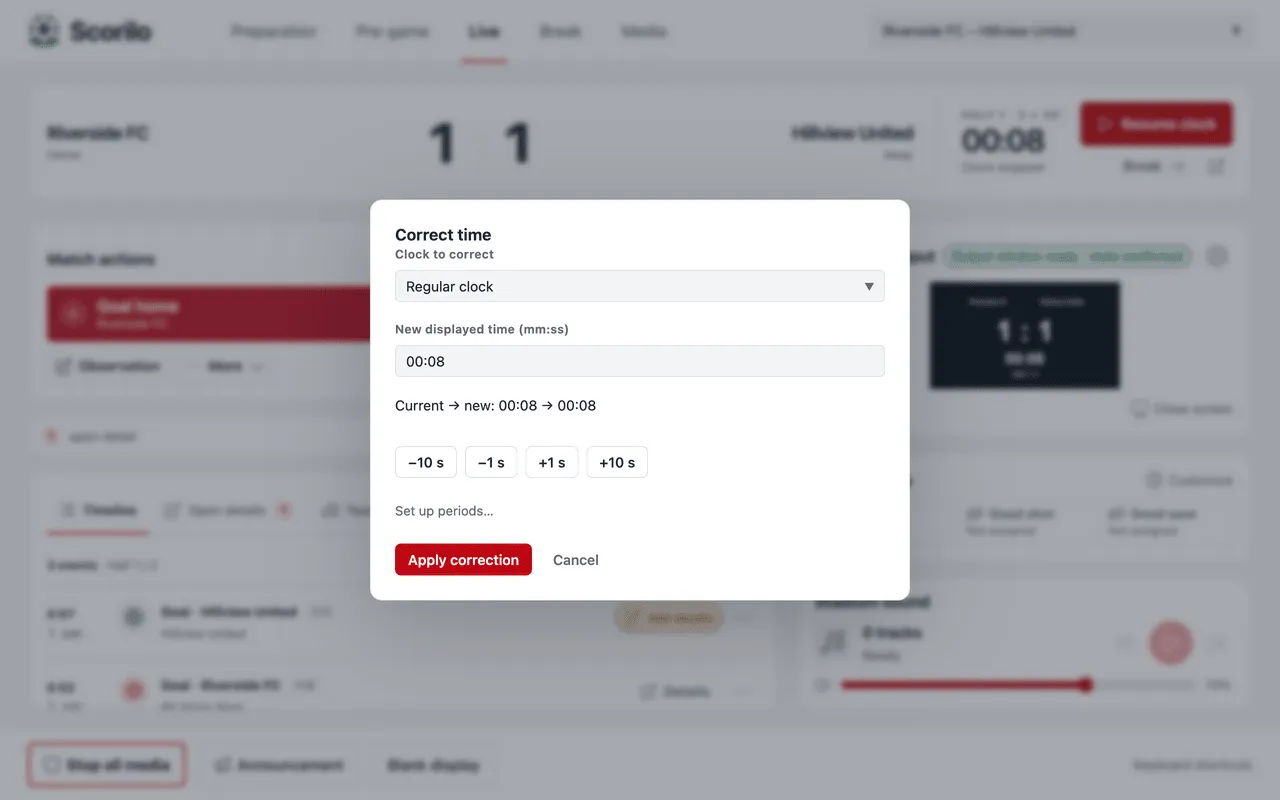
- Select the pencil next to the clock (Correct match clock).
- Under Clock to correct, choose the regular clock or the added time.
- Enter the New displayed time or adjust it with −10 s, −1 s, +1 s and +10 s. Below the field it shows “Current → new”.
- Select Apply correction, then Resume clock.
Whole minutes are quicker: with the clock paused in regular time, Control → Add One Minute (Cmd/Ctrl+↑) adds a minute and Subtract One Minute (Cmd/Ctrl+↓) removes one.
The corrected time must lie within the current period. To change the match format, Set up periods… in the dialog opens Preparation → Timing.
Undo a period change
Section titled “Undo a period change”If you selected Break → too early, Undo straight afterwards reverts the period change. The clock stays paused; start it with Resume clock.