
Prepare a match
In Scorilo every match is an entry of its own, with its teams, match length, players and all events. You can prepare it days ahead or just before kickoff.
Create a new match
Section titled “Create a new match”Prerequisite: The clock of the current match is not running.
- Select Preparation → New match… or File → New match… (Cmd/Ctrl+N).
- Choose the source:
- From DFBnet takes teams, logos, players and kickoff from DFBnet (Import from DFBnet).
- Manual starts with empty fields or your defaults.
- Check and complete the fields: Match name, for home and away the Team name, Logo and Players, plus the Match title and Kickoff. Each field shows where its value comes from: DFBnet, Default, Empty or Edited.
- Select Create.
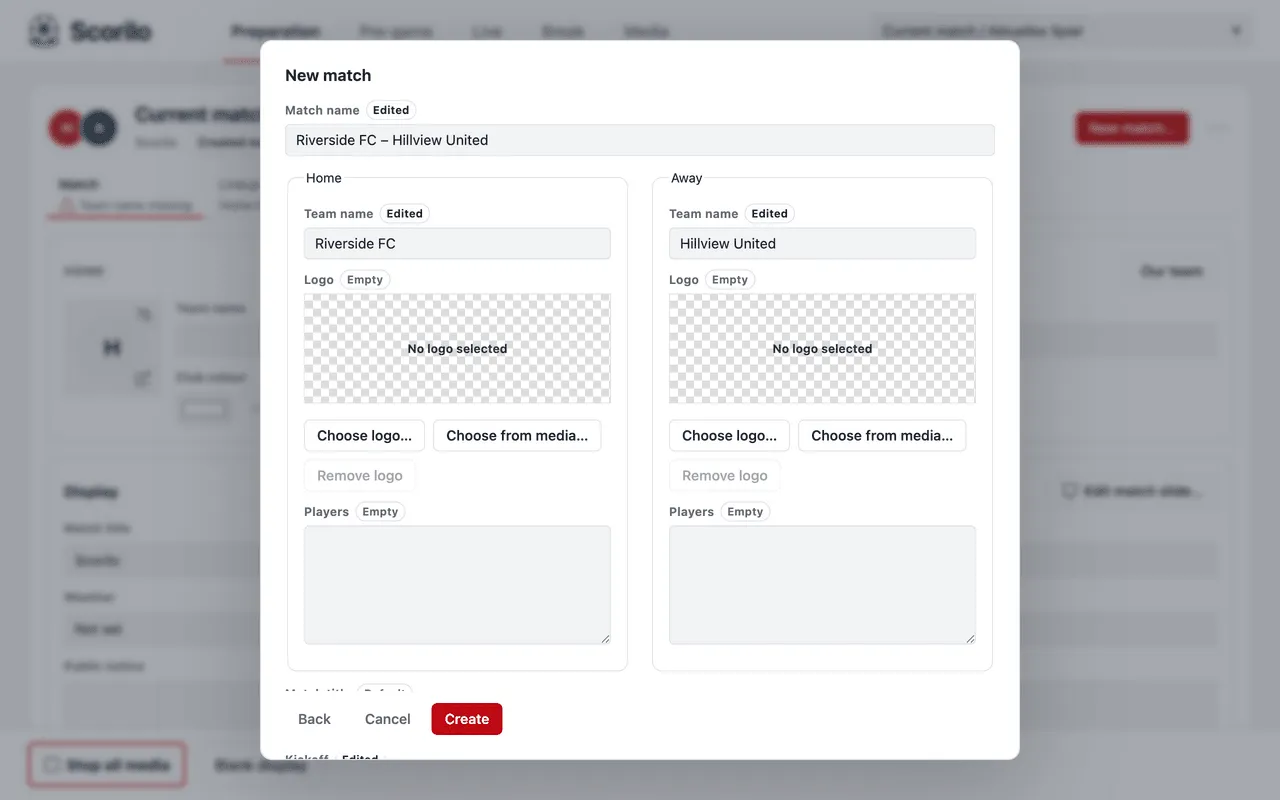
Result: The new match is created and selected as the current match in the top right corner. The previous match stays as it was.
In the Players field, write one player per line, for example
9 Adam West. For shirt numbers, goalkeepers and a lineup, it is better to add
the players to the squad (Squad and lineup).
The Use these as defaults checkbox in the dialog stores the team names, logos and match title as defaults for future new matches. This is useful for your own team.
Teams, logos and colours
Section titled “Teams, logos and colours”Preparation → Match holds the Home and Away cards:
- Team name: the name as it appears on the display.
- Logo: selecting the logo area opens Choose logo file…, Choose from media… and Remove logo. PNG and JPEG images up to 10 MB work; a PNG with a transparent background looks best on the display.
- Club colour: the team’s colour.
- Our team: marks your own team. The WhatsApp text, for example, uses it (“we”, “us”).
Below, in the Display card, you enter the Match title, for example “County League A · Matchday 7”, and Weather, Temperature (°C), Attendance and Public notice for the break slides.
Team names, colours, title and match facts are a draft: select Apply in the bottom right corner to show them on the display, or Discard. Logos and Our team save immediately.
The arrow between the two cards swaps home and away. This only works before the match has started.
Set the match length
Section titled “Set the match length”In Preparation → Timing:
- Under Match format, choose Free clock (no periods), Single period, Halves, Thirds, Quarters or Custom (1 to 12 periods).
- Enter the Duration (mm:ss) and choose whether it applies to Each period or the Whole match.
- Choose the Counting direction: Count up (0:00 to 45:00) or Count down.
- Choose what happens When regular time expires:
- Hold clock and measure overrun: the regular time stops and Scorilo counts the added time separately.
- Keep running: the clock simply keeps running.
- Stop automatically: the clock stops when time is up.
- Under Overrun visibility, choose whether only you see the added time (Operator only) or the audience too (Operator and scoreboard).
- Enter the break time. Advanced: labels and individual durations gives periods their own names and lengths.
- Select Apply in the bottom right corner.
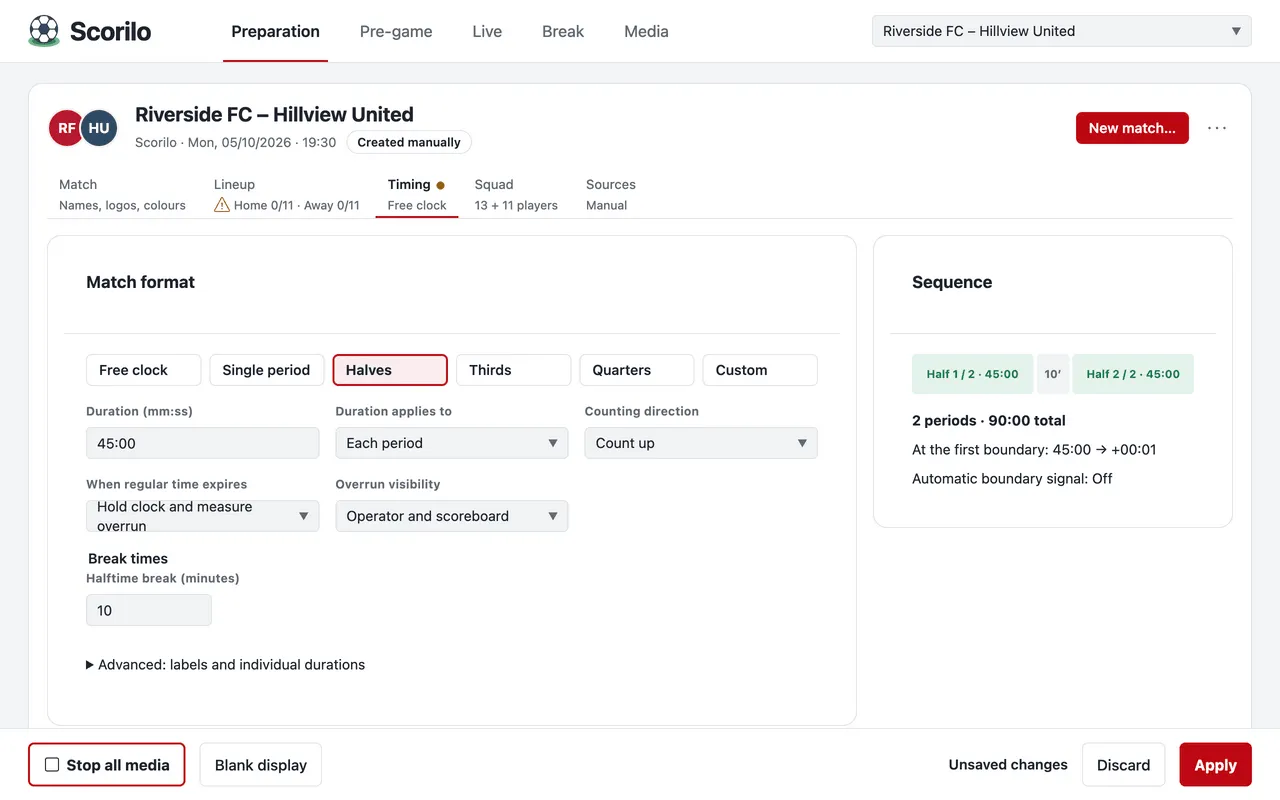
The Sequence card on the right shows the periods and breaks before you apply.
Scorilo does not decide the added time the referee shows. You end every period yourself when the referee blows the whistle.
Switch between matches
Section titled “Switch between matches”Under Current match in the top right corner you choose another saved match; File → Open match lists the same matches. Scorilo does not switch while the clock is running or a draft is open, and tells you what to do first.
More actions (the three dots next to New match…) offers Rename…, Swap teams…, Use as defaults and Archive and recovery…. Archived matches appear at the end of the list.