
Quick start
This guide takes you from the download to a match with a running clock and the first goal on the display. Allow about 20 minutes, and try it out calmly before your first match day.
You need: the computer that will drive the display, the second screen (projector or LED wall) with its cable, and an email address you can check right now.
1. Install Scorilo
Section titled “1. Install Scorilo”Download Scorilo from scorilo.de and install it. The details for Mac and Windows are in Install and update.
2. Sign in and start the trial
Section titled “2. Sign in and start the trial”The first time you start Scorilo, it opens the license window.
- Enter your email address and select Send code.
- Enter the 6-digit code from the email. It is valid for 15 minutes.
- Select Try for free. If you already have a subscription, choose your license instead.
- Check the Device name and select Activate and start.
Result: The license window closes and Scorilo’s control window opens. What the trial can and cannot do is described in Trial and license.
3. Connect the screen for the audience
Section titled “3. Connect the screen for the audience”- Connect the second screen and set it up in your operating system as an extended display, not a mirrored one.
- Open the settings: on a Mac Scorilo → Settings…, on Windows File → Settings…, or press Cmd/Ctrl+,.
- Select Display and choose the second screen under Monitor.
- Select Open / restart display, then Save Profile at the bottom.
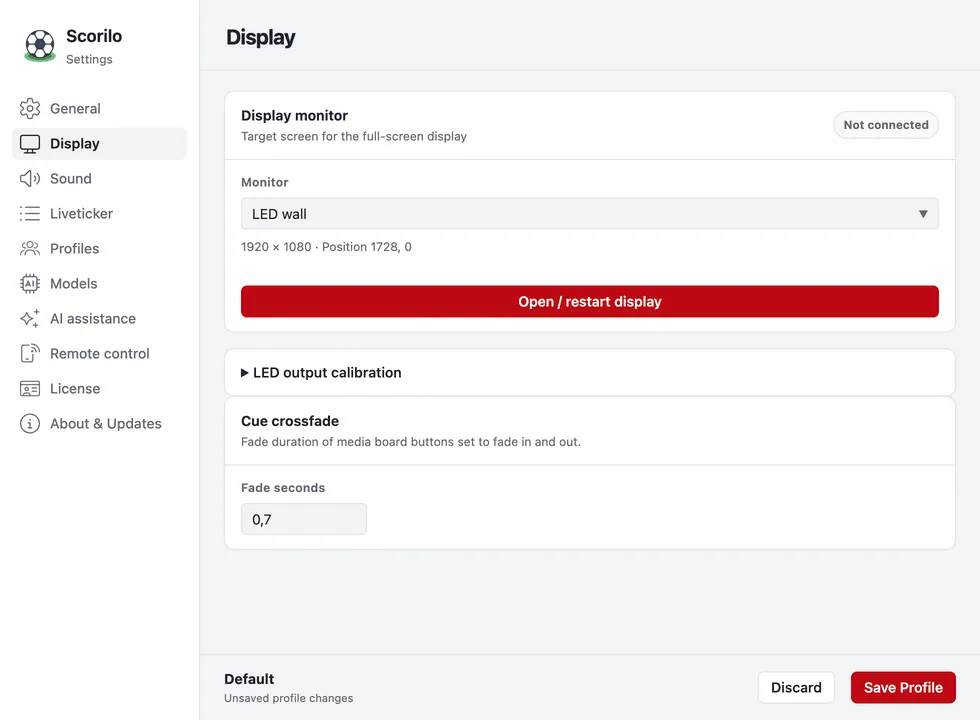
Result: The scoreboard with the score and the clock appears on the second screen. See Connect a display for more.
4. Create a match
Section titled “4. Create a match”- Select Preparation at the top of the control window, then New match….
- Select Manual. (From DFBnet takes the data from DFBnet, see Import from DFBnet.)
- Enter the Match name, both Team name fields and the Kickoff.
- Select Create.
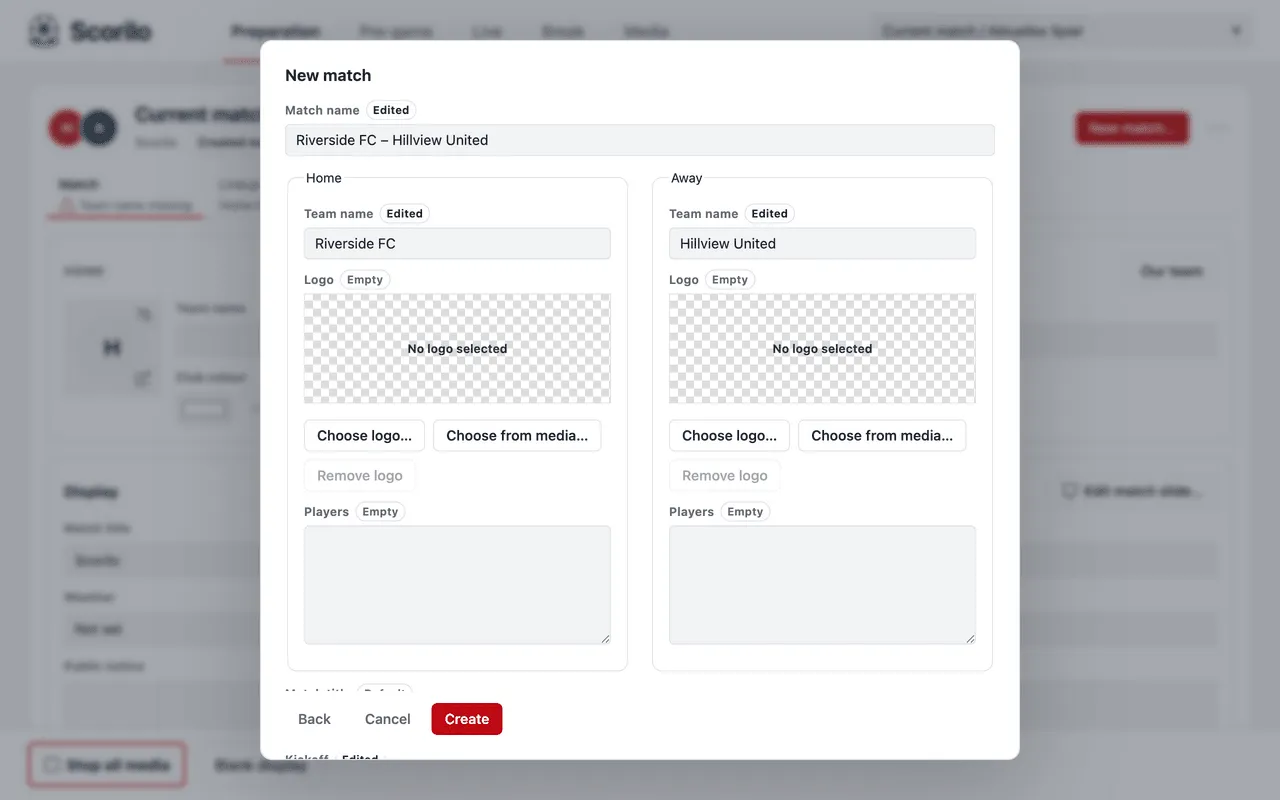
Result: The new match is selected in the top right corner.
5. Set the match length
Section titled “5. Set the match length”- In Preparation, select the Timing section.
- Select Halves and enter the Duration of one half, for example
45:00. - Select Apply in the bottom right corner.
Result: Timing reads, for example, “2 × 45 min. · Break 10 min”.
6. Show something before kickoff
Section titled “6. Show something before kickoff”- Select Pre-game at the top.
- In the Display program card, select the plus (Add), then Welcome scene. Repeat with Kickoff countdown.
- In the side panel, select Save program and close the panel with the ×.
- Select Start program.
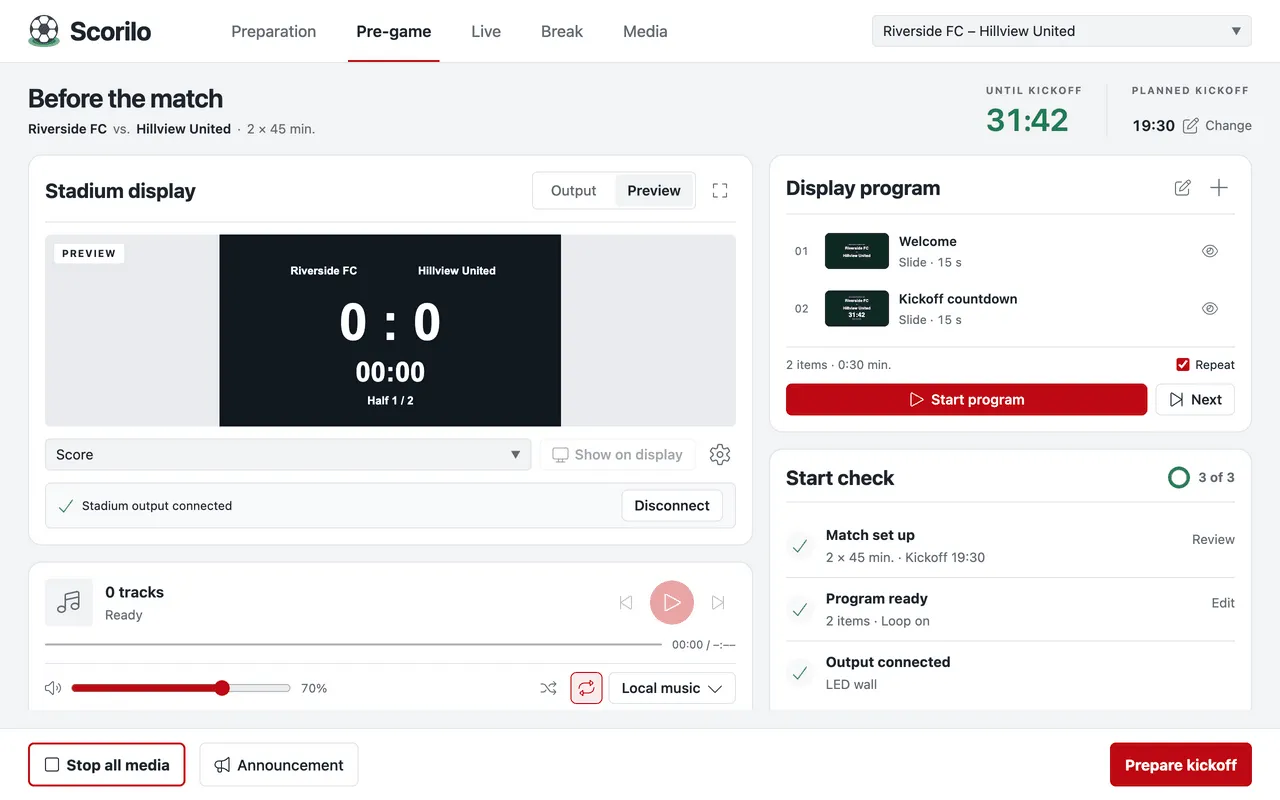
Result: The display alternates between the welcome slide and the countdown to kickoff. The Start check reads “3 of 3”.
7. Kickoff
Section titled “7. Kickoff”- Select Prepare kickoff in the bottom right corner.
- Check the teams and the match format in the Ready for kickoff? dialog.
- When the referee blows the whistle, select Confirm kickoff · start clock.
Result: The clock runs, the program stops, the display shows the score and Scorilo switches to the Live view.
8. Record a goal
Section titled “8. Record a goal”- Select Goal home or Goal away.
- Choose the scorer or No player.
- Select Complete. To add the details later, select Complete later.
Result: The score on the display changes as soon as you select Goal home, before you choose the scorer. If you recorded a goal by mistake, select Undo.
9. Half-time
Section titled “9. Half-time”- At the half-time whistle, select Break → below the clock and confirm.
- Scorilo switches to the Break view. If the display is connected, the break program starts on its own.
- For the second half, select Prepare Half 2, then Confirm kickoff · start clock.
10. Final whistle
Section titled “10. Final whistle”In the last half, select Final whistle → below the clock and confirm.
Result: Below the clock it says “Match finished”.
What about saving?
Section titled “What about saving?”Scorilo saves every goal, every clock change and every change to the match on your computer automatically. If the computer crashes, the match is back the next time you start Scorilo. To create a file you can take with you or keep as a backup, use File → Save As…; this is not available in the trial. See Saving and files.
Next steps
Section titled “Next steps”- Finding your way around: what the five areas at the top of the control window do.
- Squad and lineup: players with shirt numbers and a lineup for the display.
- Music, announcements and signals: music before the match and quick media for goal celebrations.