
Live: clock and goals
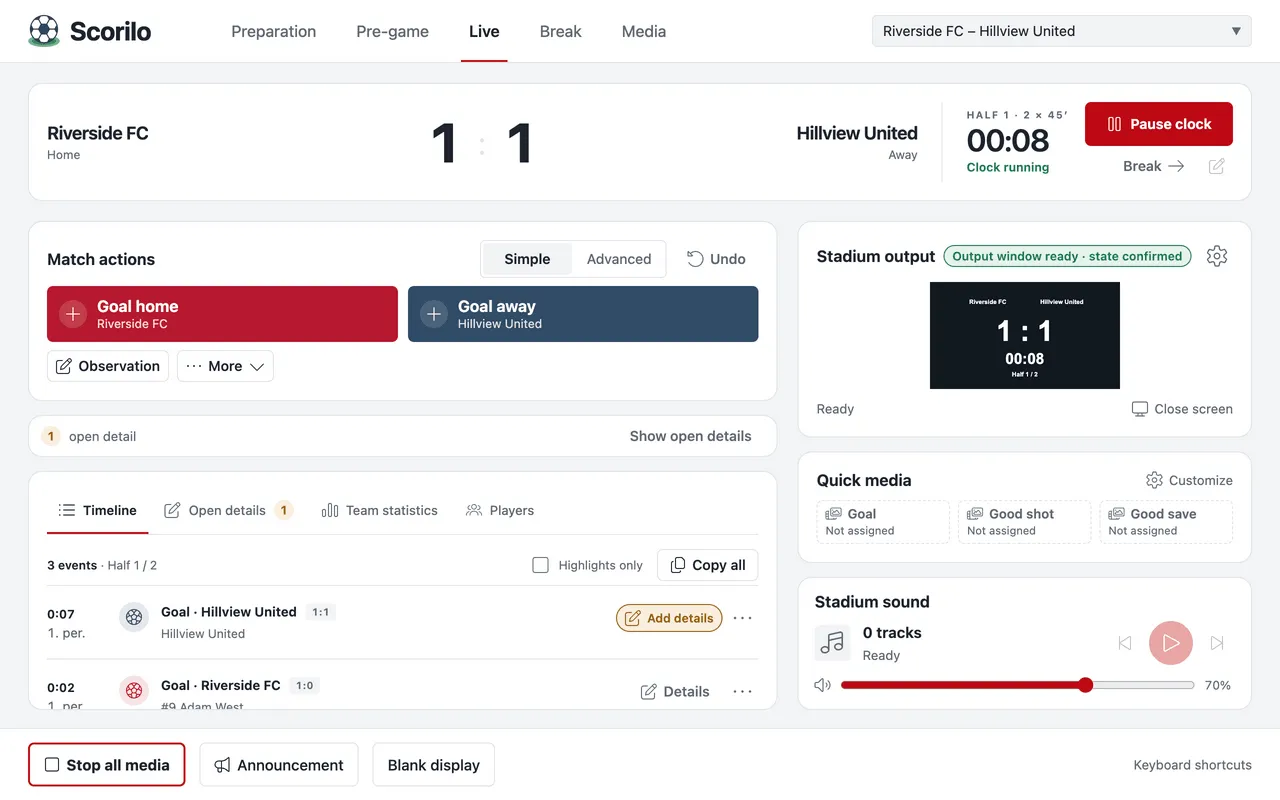
Live is the area for the match itself. The top shows the teams, the score and the clock; below are the match actions and the timeline; on the right a copy of the display, the quick media and the stadium sound.
The clock
Section titled “The clock”- Start clock starts the clock, Pause clock stops it, Resume clock lets it run on. The Space bar does the same, as long as you are not typing in a text field.
- Below the clock you see its state: “Clock running”, “Clock stopped”, “Period ended” or “Match finished”.
- Above the clock you see the period and the match format, for example “Half 1 · 2 × 45′”.
You only need to pause for a real interruption. You end the half with Break →, not with Pause clock (Break and final whistle).
When the regular time is up, the clock behaves as set in Preparation → Timing: it measures added time, keeps running or stops (Prepare a match).
Record a goal
Section titled “Record a goal”- Select Goal home or Goal away (or Alt+H or Alt+G).
- The score changes immediately, on the display and in Scorilo. Below, the “Goal for …” capture opens.
- Choose the scorer. You can search by number or name. Without a squad, choose No player or type the name. Tick Own goal for an own goal.
- Select Complete.
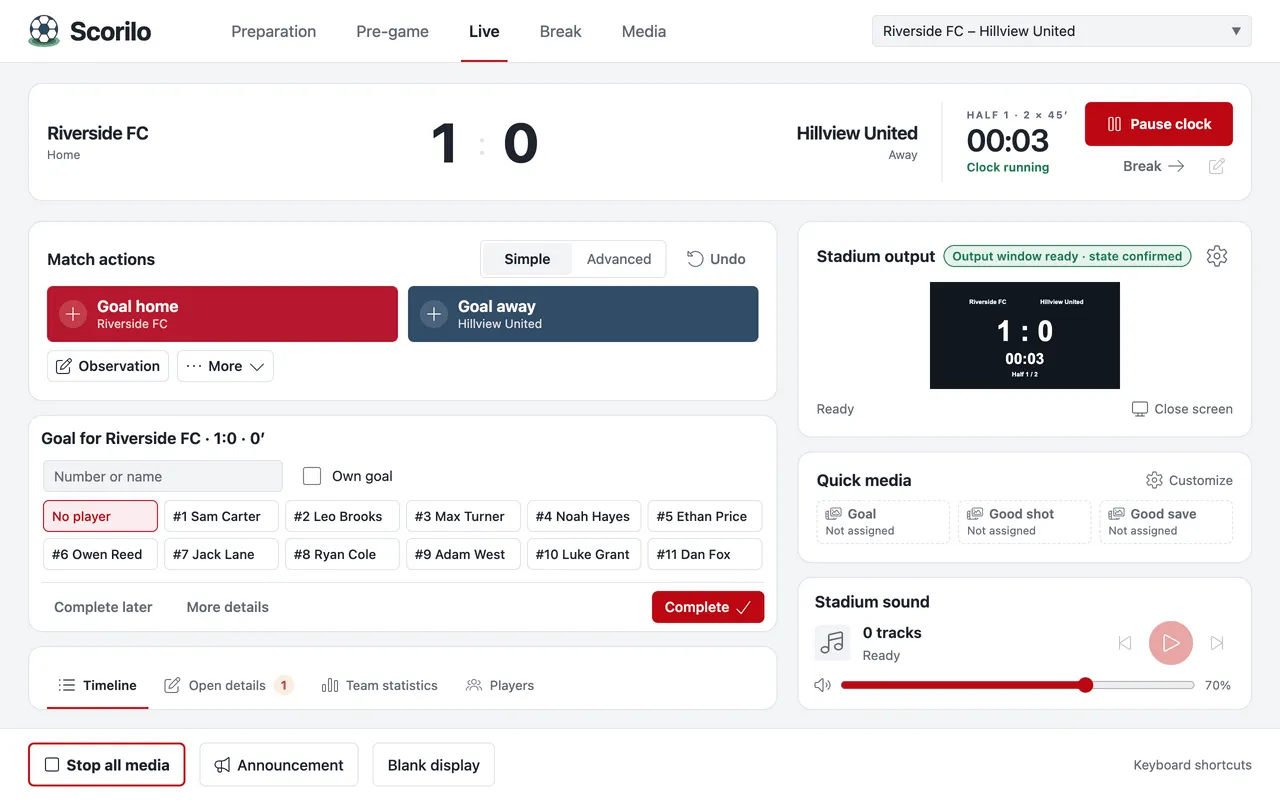
If you have no time for details right now, select Complete later or press Esc. The goal still counts. Scorilo lists such goals under Open details; Add details in the timeline lets you finish them later.
Simple or Advanced
Section titled “Simple or Advanced”At the top of Match actions you choose the view:
- Simple: fewer buttons; the goal capture starts with the scorer. More details continues to the play and the text.
- Advanced: every event directly visible, and the goal capture with all steps: Player, Play and Preview (the live ticker text).
Switching the view changes nothing about the clock, the score or an open capture.
Undo a goal
Section titled “Undo a goal”Undo at the top of Match actions (or Cmd/Ctrl+Z) reverts your most recent match action: a goal, an event or a period change. Hover over it to see what it reverts, for example “Undo: Goal for Riverside FC · 0:02”.
An undone goal stays visible in the timeline as withdrawn. To fix a different, older goal, use its menu in the timeline (Events and corrections).
What the audience sees
Section titled “What the audience sees”The Stadium output card shows a copy of the display and whether it is connected. The gear menu chooses the match slide or blanks the output, and offers Edit match slide… (Design the scoreboard).
Blank display at the bottom turns the display black, Show display brings it back. The clock keeps running.
Keyboard shortcuts in Live
Section titled “Keyboard shortcuts in Live”Keyboard shortcuts in the bottom right corner lists every shortcut of this view. The most important ones: Space for the clock, Alt+H/G for goals, Cmd/Ctrl+Z for Undo, and Cmd/Ctrl+Shift+X for Stop all media. On a Mac, Alt is the Option key. The full list is in Keyboard shortcuts.