
Manage media
The Media area holds all images, videos, audio files, slides, animations and sequences of your profile. Display program items, quick media and music all come from here.
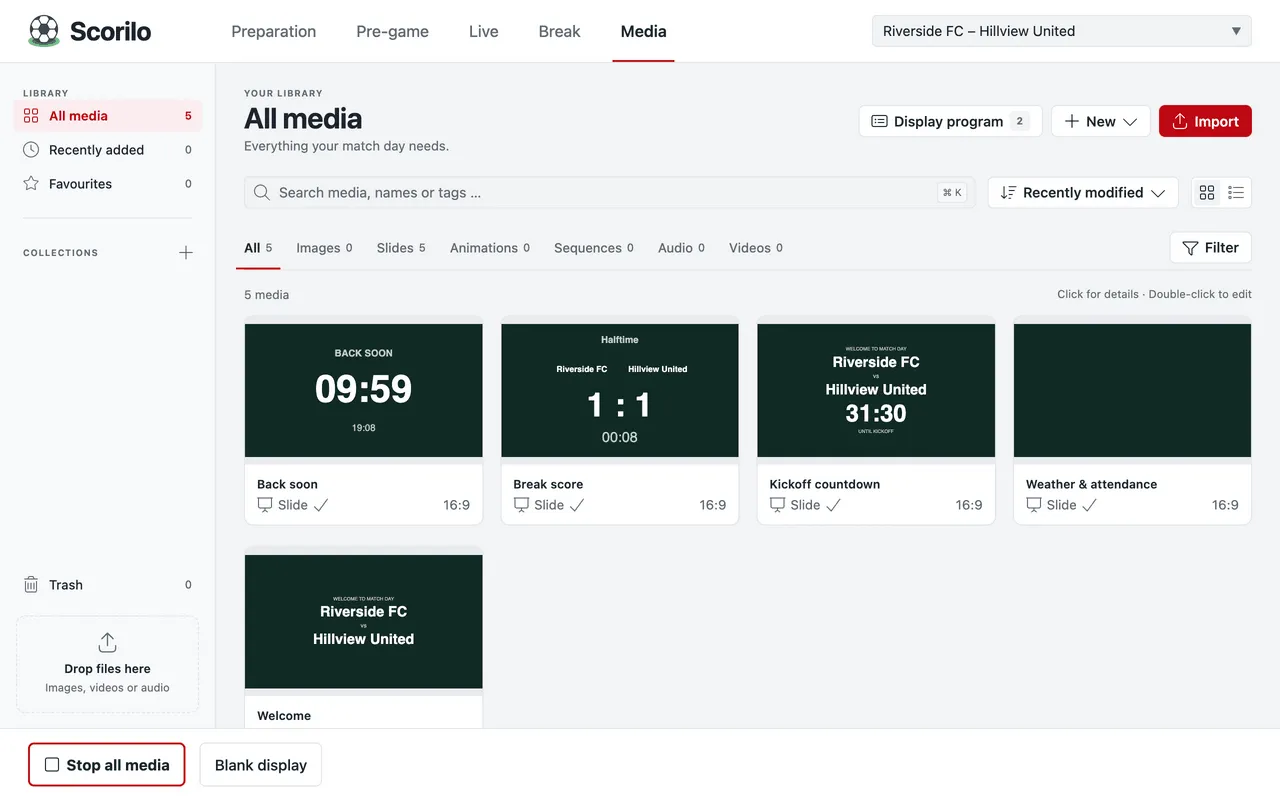
Import media
Section titled “Import media”- Select Media → Import or drag files onto Drop files here.
- Choose up to 100 files at once.
Supported files:
| Kind | Formats | Size |
|---|---|---|
| Images | PNG, JPEG, WebP | up to 80 MB |
| Audio | MP3, WAV, OGG, M4A | up to 512 MB |
| Video | MP4, WebM | up to 512 MB |
Whether a video or audio file plays also depends on its codec. Try new files before match day. Scorilo copies every file into its own storage. If you move or delete the original afterwards, the item stays available.
Logos and player photos you choose in Preparation are placed automatically in the collections Club crests and Player photos and in a collection named after the team.
Find and organise
Section titled “Find and organise”- Search: finds names, tags and collections (Cmd/Ctrl+K).
- Tabs: All, Images, Slides, Animations, Sequences, Audio, Videos.
- Favourites: the star on a card.
- Collections: the plus next to Collections creates one; drag items into it.
Selecting a card opens the Details on the right with a preview, Rename, Add to display program, Duplicate and further information. A double-click opens an image in the image editor, and a slide, animation or sequence in the editor (The editor). The round preview button shows the item in a preview window; nothing reaches the display.
Delete and restore
Section titled “Delete and restore”- Select the item and Move to trash (or Delete).
- Straight afterwards you can revert it with Undo in the message in the bottom right corner, or with Cmd/Ctrl+Z.
- Later you get it back from the Trash with Restore.
An item that is still in use, for example in the display program, cannot be moved to the trash.
If a file is missing
Section titled “If a file is missing”If an item shows Missing file, Scorilo can no longer find its file, for example after a disk problem. The match carries on; the display stays empty at that spot.
- Select the item and Import again….
- Choose the file. If it is the same file, the item is back immediately. If it is a different file, Scorilo asks whether to replace the content.
A Scorilo document cannot be saved while an item it uses is missing.
Share media
Section titled “Share media”Packages (.scorilopack) let you pass images, videos, slides and animations to
another computer or club:
- Select the items, then Export in the selection bar or Export… in an item’s menu.
- On the other computer, select Media → Import or File → Import Package…. A preview shows what will be added before you take it over.
A package contains the items and what they need, but no matches, players, settings or DFBnet data. Team names, logos and lineups in slides come from the other computer’s own match. Packages are locked in the trial.