
The editor
In the editor you design what appears on the display: slides for sponsors and notices, animations and whole sequences. You do not need it for match day; the built-in Welcome, Kickoff countdown and break slides work as they are.
What you can edit
Section titled “What you can edit”| Kind | Create with | What it is |
|---|---|---|
| Slide | Media → New → New slide | a still picture with texts, images and data fields, 1920 × 1080 pixels |
| Animation | Media → New → New animation or Animate on a slide | one scene with a timeline and motion |
| Sequence | Media → New → New sequence | several scenes in a row, with transitions and music |
| Match slide | Edit match slide… | the scoreboard itself (Design the scoreboard) |
Double-click an existing slide in Media to open it. Each one opens in a window of its own; the clock and the display keep running.
The window
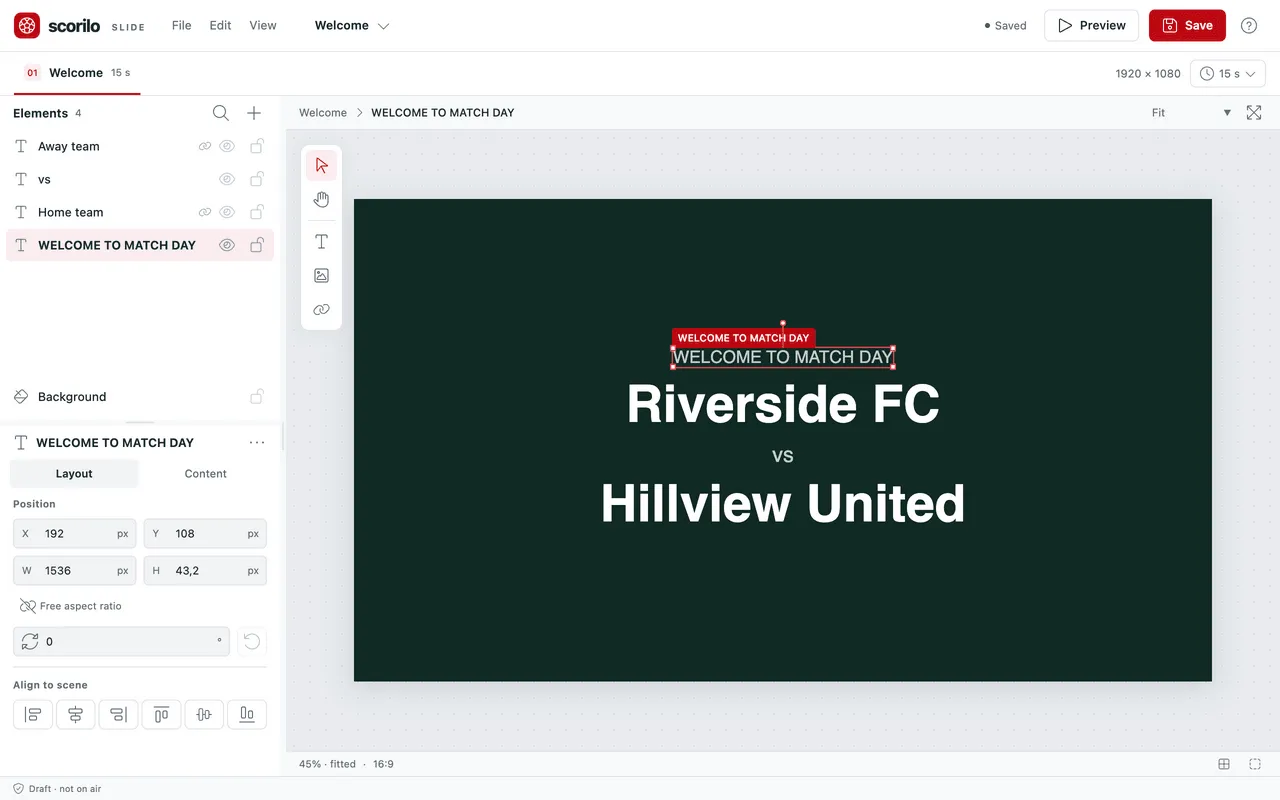
Section titled “The window”- Top: the File, Edit and View menus, the name (select it to rename), the save status, Preview and Save.
- Left: Elements lists everything on the slide. The plus adds an element: Text, Image or Data field. Below it are the Properties of the selected element, with the Layout and Content tabs.
- Middle: the artboard. Drag elements with the mouse; the toolbar next to it selects the selection, hand, text, image and data field tools.
- Bottom: the timeline, for animations and sequences.
Data fields always show the values of the current match: team names, logos, score, kickoff time, lineup or bench. That way you do not have to change a slide for every match.
Save and undo
Section titled “Save and undo”- Every change is one step for Edit → Undo (Cmd/Ctrl+Z).
- Save (Cmd/Ctrl+S) writes the slide to your media. The top then reads Saved.
- File → Save as new… creates a copy with a new name.
- File → Discard changes… closes without saving.
- File → Restore original restores a built-in slide.
If you close the window with unsaved changes, Scorilo asks Save, Don’t Save or Cancel.
Preview plays the slide or animation in the editor. It only reaches the display once you add it to a display program or assign it to a quick media button.
Templates
Section titled “Templates”Media → New offers ready-made templates that you adapt to your club:
- 7-a-side lineup – camera move and Lineup – tactics board show the planned lineup (Squad and lineup).
- Player intro – Red Light Tunnel, Player intro – Stadium Hero, Player intro – Player Card Depth and Player intro – Pitch Position Reveal introduce players with photo, name and number.
- Goal scene – Goal Combination shows the scorer and the provider after a goal. You choose which goal scene plays in Live → Quick media → Customize → Goal flow.
In the display program, a player intro can play once for each selected player: in the item’s Settings, under Repeat, choose For each player, then the players.
Shortcuts in the editor
Section titled “Shortcuts in the editor”Help and shortcuts (the question mark in the top right corner, or ?) lists every shortcut of the editor. Frequently used: Cmd/Ctrl+0 fits the artboard, Cmd/Ctrl+D duplicates an element, Cmd/Ctrl+G groups.