
Before the match
Pre-game is the area for the time until kickoff. It shows what the audience currently sees, what is still missing and what comes next.
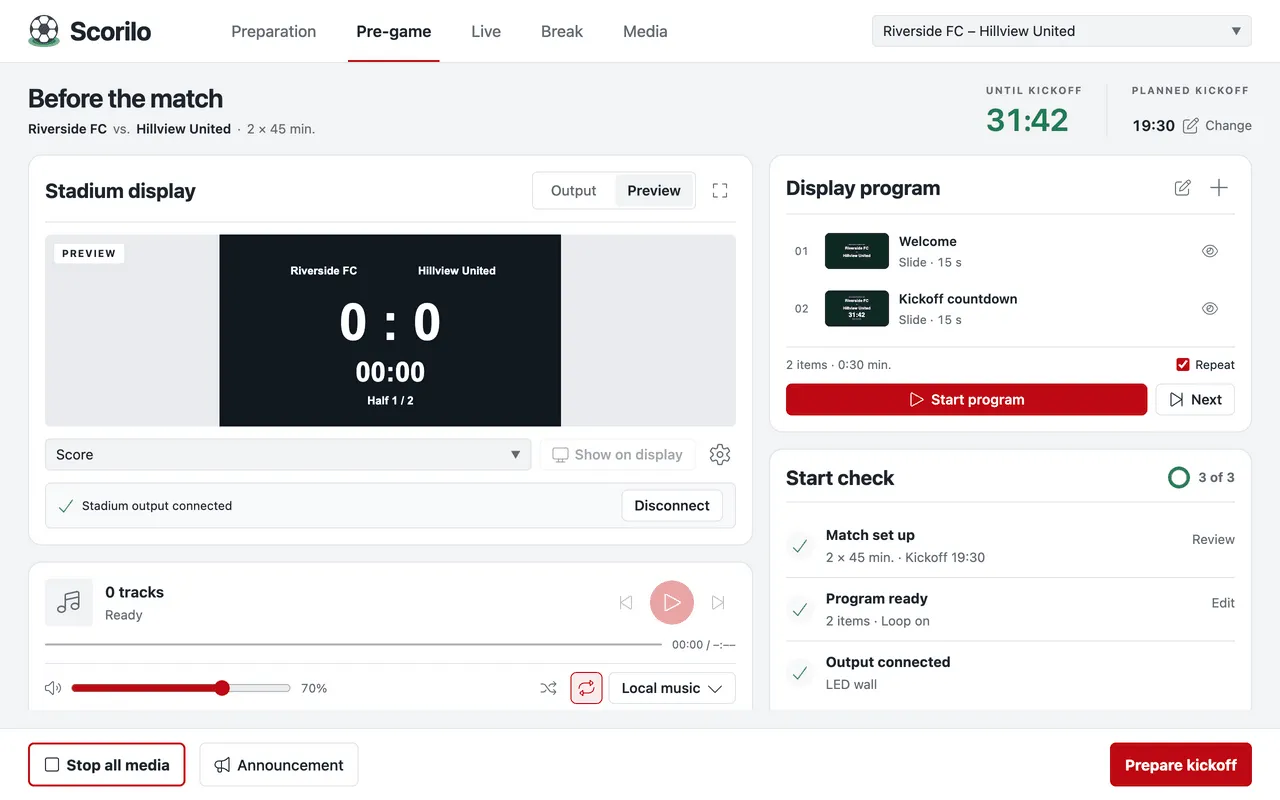
- Until kickoff and Planned kickoff are in the top right corner. Change sets the kickoff time, for example In 15 minutes. The countdown never starts anything by itself.
- Stadium display on the left shows either the Output (what the audience sees) or a muted Preview.
- Display program is the program of slides, images and videos.
- Music plays your music (Music, announcements and signals).
- Start check shows what is still missing before kickoff.
Build the display program
Section titled “Build the display program”- In Display program, select the plus (Add):
- Choose from media…: images, videos, slides and animations from your media, several at once if you like,
- Import file…: an image or video from your computer,
- Welcome scene and Kickoff countdown: ready-made slides with the team names.
- The Display program side panel opens. Order the items with the arrows, remove them with the ×, and set how many seconds a slide or image stays.
- Under an item’s Settings you choose the Transition into item (a direct cut or a crossfade), the Image fit and, for videos, the Video sound.
- Select Save program and close the side panel.
Adding and changing items never starts anything on the display. While the display program is not saved, the card shows Unsaved changes.
With Repeat, the program starts again after the last item. Videos play until they end.
Play the program
Section titled “Play the program”- Start program plays the display program from the first item. If the display is not connected, the button reads Connect and start.
- Pause program and Resume program hold the program.
- Next skips to the next item.
- Stop all media (bottom left) stops the program, music and quick media. The display then shows the score.
Show one item
Section titled “Show one item”Below the stadium display, choose a source: Score, Black or an item of the display program. The stadium display switches to Preview; the audience sees nothing of it. Only Show on display puts the source on the display.
The start check
Section titled “The start check”The check counts three points, for example “2 of 3”:
- Match set up: both team names and a kickoff time,
- Program ready: at least one saved item and no unsaved changes,
- Output connected: the display has reported back.
Next to an open point is the matching action, such as Set or Connect. The check does not prevent the kickoff.
Announcement
Section titled “Announcement”Announcement at the bottom opens a dialog with text templates (welcome, kickoff soon, fair play) and your notes. Start announcement lowers the music to at most 15 %, End announcement restores the volume. You switch the microphone on at your PA system; Scorilo does not record anything.
Kickoff
Section titled “Kickoff”- Select Prepare kickoff (or Cmd/Ctrl+Enter).
- Check the teams, score, match format and counting direction.
- At kickoff, select Confirm kickoff · start clock.
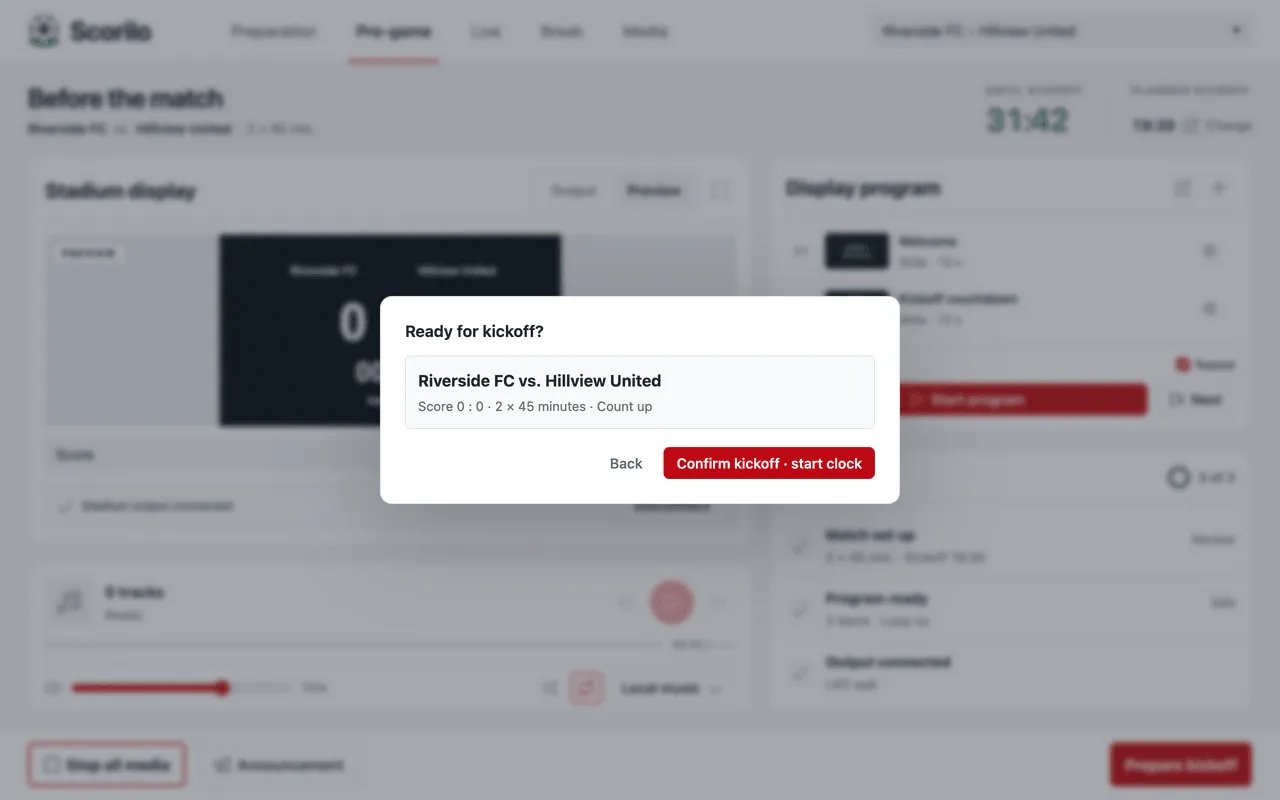
Result: The clock runs. The program and quick media stop, the display shows the score, the music fades out over 2 seconds and Scorilo switches to Live.
If no display is connected, the dialog warns “No stadium output connected.”. Connect it with Connect, or tick Kick off without stadium output if you deliberately play without a display.
Once the match has started, the button reads Go to Live and only switches the view.